Working with journeys
How to record a journey that replays reliably
A journey is a sequence of steps on your website: clicks, typing into a field, scrolling, waiting. You record it once. On every scheduled scan of the test, AnalyticsProof replays it and watches what each step sends to the dataLayer and to your analytics tools.
Replay repeats exactly what you recorded. It adds nothing and skips nothing. That is why the way you record matters.
Where the browser runs
The browser you record in does not run on your machine but on ours. Its picture is streamed into the dialog and your clicks are sent back to it. It uses the language and time zone of the country set on the test, and it reaches your site through an IP address in that country. Your site therefore sees you the way it sees a visitor from there, including the cookie banner it shows that visitor.
The journey stores these settings from the time of recording, and replay runs with the same language, time zone and viewport. If you change the test's country later, the saved journey keeps the old one. Record it again after changing the country.
Before you start, you also pick the viewport, "Desktop" or "Mobile". Replay uses the one you recorded with. A mobile site with a different menu is a different page to the scanner, so if you care about both versions, record two journeys.
Owners, admins and editors can record. Viewers can only look at journeys.
Click the cookie banner yourself
AnalyticsProof never closes the cookie banner for you in a journey, neither while recording nor during replay. Clicking the banner is an ordinary step, just like clicking a menu item. The hint in the dialog says so: "Click elements to record steps — including the cookie banner".
Three things follow from this:
- Your choice decides what the journey measures. If you accept consent while recording, every replay measures the site after acceptance. If you reject it, every replay measures the site after rejection. To watch both, record two journeys.
- The banner has to appear again on replay. The step that clicks the banner expects the banner to be there. If it does not show up, the scanner cannot find the target and will not click blindly. The scan detail shows "Step target not found" for that step and the replay goes on without the click, so the following steps run without the choice you recorded. The journey is marked broken only when several steps in a row cannot run.
- A journey does not replace the consent check. What your site does before consent, after acceptance and after rejection is checked by the separate compliance scan, which handles the banner itself. A journey watches measurement on the steps you recorded.
Which steps you can record
Add a new journey on the test page with "Add journey". In the dialog, start with "Start Recording". Once the picture of your site appears, click the element you want to use. A small menu with two options opens at the cursor:
- Click records the click and performs it.
- Type opens a text field. Enter the text and press "Confirm". The scanner clicks into the field, clears it and types the text key by key. It does not press Enter, so submit a form or a search with another click on its button.
Scroll by using the mouse wheel over the picture. Between the steps there are "+" buttons ("Insert step here"). Use them to add a wait or a scroll afterwards. For a wait you set the length in seconds, up to one minute.
"Undo Last" removes the last step, the cross next to a step removes that one, and "Clear All" empties the list. When you are done, name the journey and save it with "Save Journey".
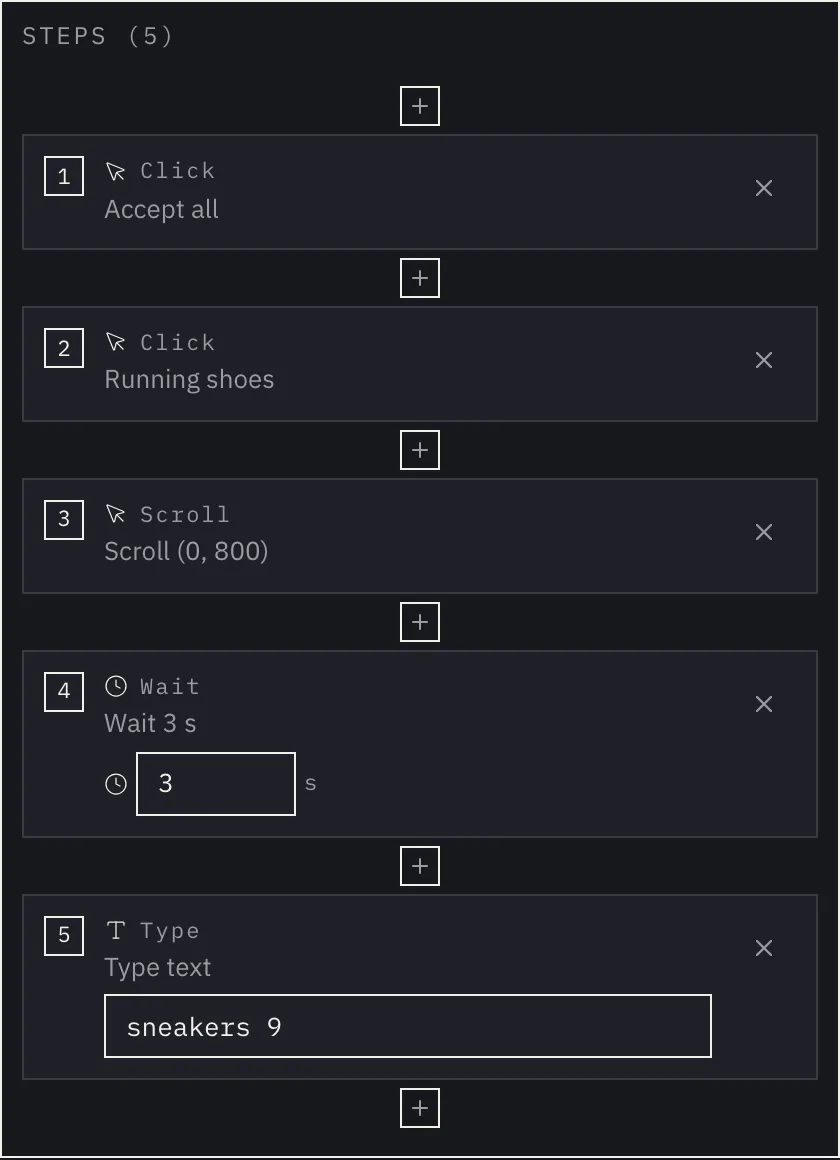
The text of a typing step is saved in the journey exactly as you entered it, and it is visible in the step list when you edit the journey. Use a test account and test data for logins and forms, never a real password.
What makes steps fragile
On replay, the scanner looks for each element using what the recording stored about it. It works best with elements that stay in the same place with the same text. These are the usual weak spots:
- Content that changes on its own. Carousels, product listings sorted by availability, personalised recommendations, ad slots, A/B tests. What you clicked today may not be there tomorrow. Prefer the menu, permanent buttons and categories.
- Slow loading. If you click an element that is still rendering, a replay on a slower connection may get there before it exists. Let the page settle before you click. For content that loads later, insert a wait step.
- Elements on top of the page. A chat window or a newsletter pop-up can cover a button. The scanner will not click through it, because the click would land on a different element than the one you recorded. The step does not run and the scan detail shows "Target covered by another element". If the pop-up appears every time, close it as its own step in the journey. If it appears only sometimes, the step will sometimes not run. The replay moves on to the next step, and the journey is marked broken only when several steps in a row cannot run.
- Steps with real consequences. Replay runs on every scan. Do not complete an order, send an enquiry or pay for anything. You do not need to in order to see whether an add-to-cart or a checkout start is measured.
When the scanner only finds an element by a fallback, such as its text or its recorded position, the scan detail shows it under "Monitoring integrity". The guide Broken steps and selector fixes explains how to read and fix those.
Editing a saved journey
Open a saved journey with "Update Journey" and choose one of two modes:
- "Continue from the saved steps". The scanner first replays what is already saved ("Replaying saved steps") and you carry on where the journey ended. If the replay stops along the way, you can discard the steps from that point and continue from there, or close the dialog and record the journey again.
- "Replace all steps" starts from an empty list.
A new journey has no expected state yet, so at first there is nothing to compare against. When you save a changed journey, the expected state is kept if every previously saved step is still there with the same address, action and selector; new steps get theirs from the next scans. If even one of those steps changed or disappeared, the whole expected state is established from scratch.
How many journeys you can have
Website journeys are available on every plan, Free included; journeys for HbbTV and Android apps from Professional. How many journeys can run per test, and how many steps one journey may have, depends on your plan (see pricing); scrolling does not count as a step. On every scan the journeys replay one after another, in the order you set on the test under "Run order". Once you reach the limit, you cannot add another journey. If you move to a lower plan, journeys over the limit stay saved but stop running ("Over the plan limit — not running"), starting from the end of the order. When you move back up, they start running again on their own. A journey with more steps than your plan allows also stays saved and does not run ("Too long for the plan — not running"). Shorten it and save it again, or move to a higher plan.