Reference
How the compliance score works
A website scan ends with two results: a technical score as a percentage, and a verdict. The score says how many points the site earned from the criteria that apply to it. The verdict says whether the audit found a problem that cannot be overlooked. This guide explains how each of them comes about. It covers website scans.
What the scanner measures
The scanner opens the page in a browser and records what happens before anyone touches the consent banner. Then it accepts consent in one pass and rejects it in another, reloading the page each time to check that the choice sticks. From what it saw in those passes it evaluates the criteria in this table:
| Criterion | Weight | When it counts |
|---|---|---|
| A consent banner is shown | 15 | When the site needs a consent banner |
| The consent banner works | 10 | When the site needs a consent banner |
| Consent can be rejected | 10 | When the site needs a consent banner |
| No tracking before consent | 20 | Always |
| Google Consent Mode is implemented | 15 | When the site uses Google Ads, Google Analytics 4, Google Tag Manager, or Google tag – server-side (encrypted) |
| Google Consent Mode sends the correct states | 10 | When the site uses Google Ads, Google Analytics 4, Google Tag Manager, or Google tag – server-side (encrypted) |
| No tracking cookies before consent | 10 | Always |
| The consent choice persists | 5 | When the site needs a consent banner |
| No tracking after rejection | 5 | When the site needs a consent banner |
The weight is the number of points a criterion can contribute. A site needs a consent banner when it shows one while tracking tools run, or when a tracking tool contacts its servers before consent, even if it only loads its script. The two Google Consent Mode criteria count only where the scanner finds one of the Google tools.
Most criteria either pass or fail. A few can earn part of their points: for example when consent can be rejected, but only in the banner's settings, or when the banner disappears after accepting but stays after rejecting.
The “No tracking before consent” criterion is built from what each tool did before consent. It earns its full points only when no tool did anything before consent that would count against it. A tool that only loaded its script or measured without cookies lowers it less than one that tracked visitors. What tools did after a rejection counts in “No tracking after rejection”.
Why the base is not always 100 points
A criterion that does not apply to the site counts neither as passed nor as failed. It drops out. The score is the points the site earned divided by the points it could have earned from the criteria that remain.
Example (made up, not a real site): an online shop has a consent banner and tracking tools, but no Google tool. Both Consent Mode criteria drop out, leaving 75 points. The site passes everything except “No tracking cookies before consent”, so it earns 65 points. The score is 65 / 75, shown in the dashboard as 87%.
Counted out of 100, the site would score 65% and lose points for a tool it does not use at all. Counting the dropped criteria as passed would give 90%, and the site would get points for something nobody measured.
One practical consequence: the score can move even when nobody touched the banner. Add Google Analytics to the site, and the two Consent Mode criteria arrive with it and enlarge the base.
How the dashboard shows the score
The score is always shown as a whole number, as a percentage. Only its digits carry a colour: green from 90%, amber from 50%, red below 50%. Amber does not mean “nearly fine”. A score in that range still says there is something to fix. The colour and the grade below come from the unrounded score: 89.6 shows as 90%, yet it is amber and grade B.
Next to the number, the verdict also carries a “Grade” line with a letter that is derived from the same number using this table and says nothing more:
| Grade | Score |
|---|---|
A |
90–100 |
B |
75–89 |
C |
60–74 |
D |
40–59 |
F |
0–39 |
The score and the verdict are not the same thing
The verdict, on the “Advertising assessment” line, has three states: “Compliant”, “Warning” and “Non-Compliant”. It is not derived from the score but from what the audit found:
- “Non-Compliant” when a tool is non-compliant, a criterion earns no points at all, or the audit finds a serious finding;
- “Warning” when a tool has a warning, a criterion earns only part of its points, or the audit finds a less serious finding;
- “Compliant” only when none of that applies.
A site can therefore score high and still be non-compliant. One low-weight criterion that earns nothing is enough.
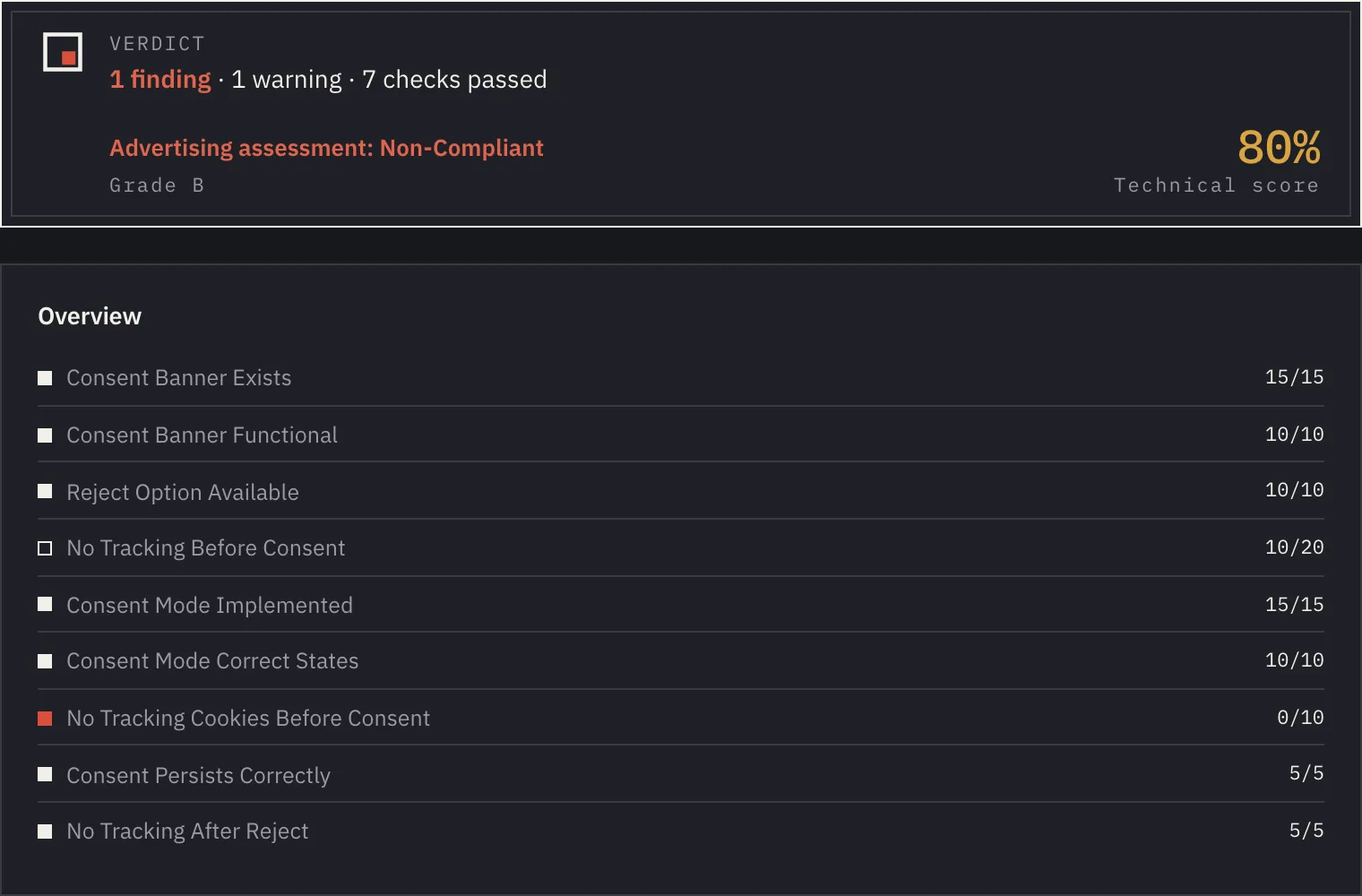
Tools on the “Tools” tab get the same three states. What decides is what the tool did before consent and after a rejection, and the worse of the two counts. For a warning or a non-compliant tool, the dashboard says why, for example:
- “Loads its script without consent; sends no measurement” or “Measures without consent in cookie-less mode (sends the IP address)” for a warning;
- “Tracks visitors without consent (cookie or visitor ID)” or “Measures without consent; the tool has no cookie-less mode” for non-compliance.
Findings and their codes
Every finding in the “Violations” section has a code next to its title. It lets you recognise the same finding across audits:
| Code | Finding |
|---|---|
GCM_001 |
Consent Mode default is missing |
GCM_002 |
Tracking cookies were set before the consent decision |
GCM_003 |
Consent state was not updated after the banner choice |
GCM_004 |
Consent update does not match the visitor's choice |
GCM_005 |
New tracking cookies were created after consent was rejected |
GCM_006 |
Consent state was not restored after page reload |
GCM_008 |
Consent Mode does not update in place after the consent choice |
GCM_009 |
Non-compliant tracking before consent |
GCM_010 |
Non-compliant tracking after consent was rejected |
GCM_012 |
Personal data sent to tools without consent |
CMP_001 |
No consent banner despite tracking tools |
CMP_002 |
Cookie wall: no option to reject tracking |
CSP_001 |
Content Security Policy blocks a tool's script |
When there is no score
An audit that does not finish has no score. In the list its status is then “No data”, “Failed” or “Cancelled”. “Cancelled” means the audit was stopped before it finished, for example because its schedule was switched off. “Failed” means it broke down along the way. A “No data” audit ran but could not measure anything reliable; its detail page says “This audit has no result” with one sentence on what happened:
- we could not load the page during our visit;
- we found the consent banner but could not click through consent;
- we could not complete the audit on our side.
There is also no score when the audit has nothing to assess: it saw no tool and no banner, or it could not establish whether the page has a banner at all. The remaining criteria would produce a number that means nothing, and we would rather not show it. Apart from a cancelled audit, the work in all of these cases is on our side; nothing is needed from you.
One case still gets a score: the page has a consent tool, but its banner did not appear during our visit, and tools such as analytics or a tag manager had already loaded before any choice was made. We then score what the page does before consent, using only the criteria that cover it: tracking and tracking cookies before consent, and Google Consent Mode where a Google tool is present. A short sentence under the score says that accepting and rejecting consent were not checked. Such a result is not compared with full audits: it does not appear in the public leaderboard ranking, it never passes a CI gate, and it does not trigger change notifications.
What the score is not
The score is not a legal opinion and not a GDPR certification. It describes what left the browser when the scanner visited the page: which tools made contact, which cookies were set and how the banner behaved. It does not assess the banner's wording, the privacy policy, the legal basis for processing, or what happens to the data on servers. It is a measurement that makes a good start for a conversation with your lawyer or data protection officer. It does not replace that conversation.